> ## Documentation Index
> Fetch the complete documentation index at: https://docs.crate.fm/llms.txt
> Use this file to discover all available pages before exploring further.

# Quick start

> Beautiful sharing and storage for your unreleased tunes, in 5 minutes or less.

With Crate.fm, not only are your sharing links beautiful, but all of your unreleased music is always with you.

<Info>Can't find what you're looking for? Drop us a note [support@crate.fm](mailto:support@crate.fm)</Info>

## Upload your first track

We made uploading tracks to Crate.fm easy. Here's how:

### Uploading on iOS

<AccordionGroup>
  <Accordion icon="apple" title="Upload from iMessage">
    <Steps>
      <Step title="Step 1">
        Find the file you would like to upload from iMessage.
      </Step>

      <Step title="Step 2">
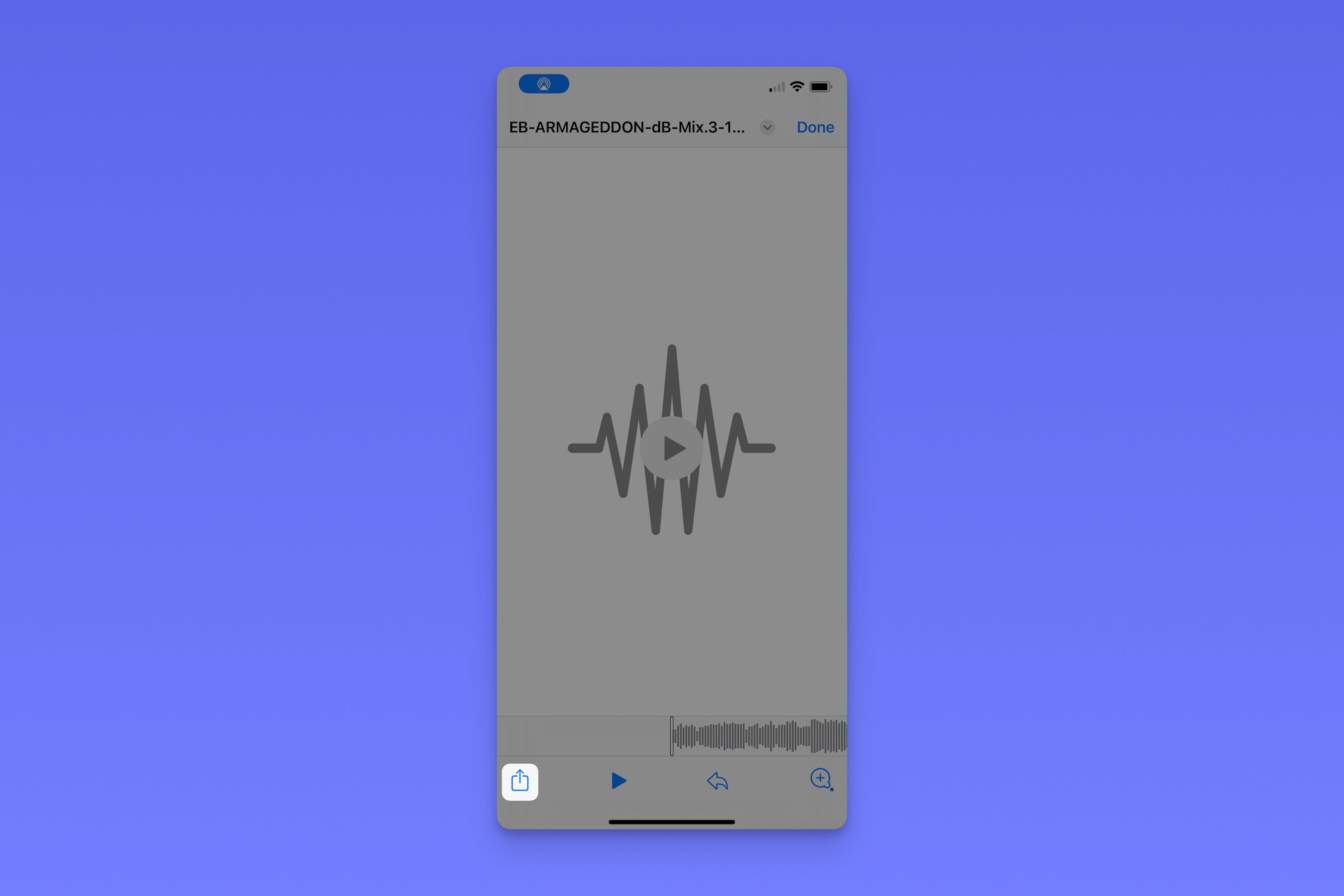
        Click the "Share" button in the bottom left corner of the screen.
        <img className="block h-auto" src="https://mintcdn.com/cratetechnologiesinc/Gtmk_9nPJ4BAQ-86/images/imessage-0.png?fit=max&auto=format&n=Gtmk_9nPJ4BAQ-86&q=85&s=42a13f93597ea5155a15132a028f6866" width="3384" height="2256" data-path="images/imessage-0.png" />
      </Step>

      <Step title="Step 3">
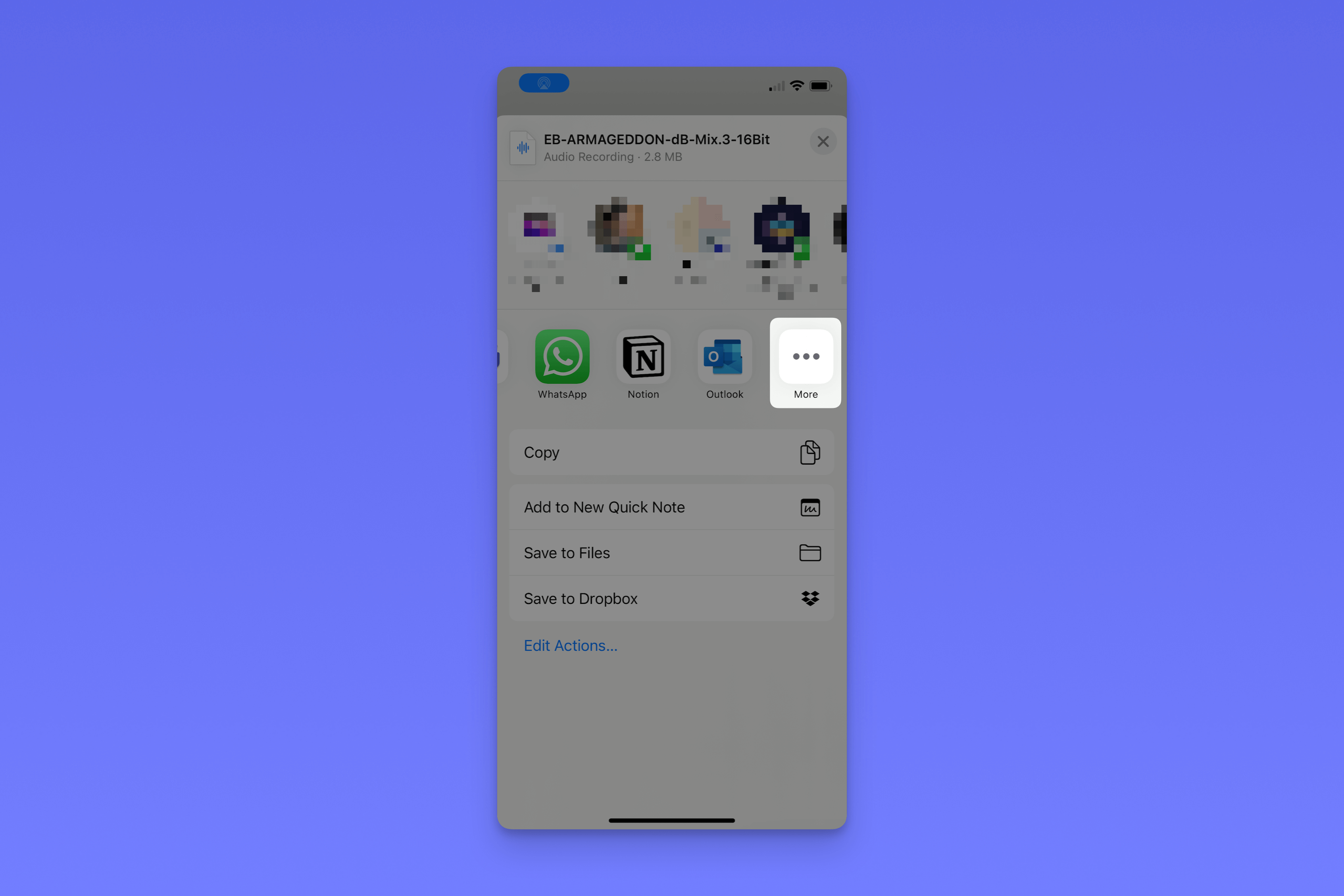
        In your list of available apps, scroll to the right to find "More" and
        click on it.
        <img className="block h-auto" src="https://mintcdn.com/cratetechnologiesinc/Gtmk_9nPJ4BAQ-86/images/imessage-4.png?fit=max&auto=format&n=Gtmk_9nPJ4BAQ-86&q=85&s=5b61ab909d2eed9a567307e92f8a02da" width="3387" height="2258" data-path="images/imessage-4.png" />
      </Step>

      <Step title="Step 4">
        Now, scroll to the bottom of the list of apps until you see Crate.fm.
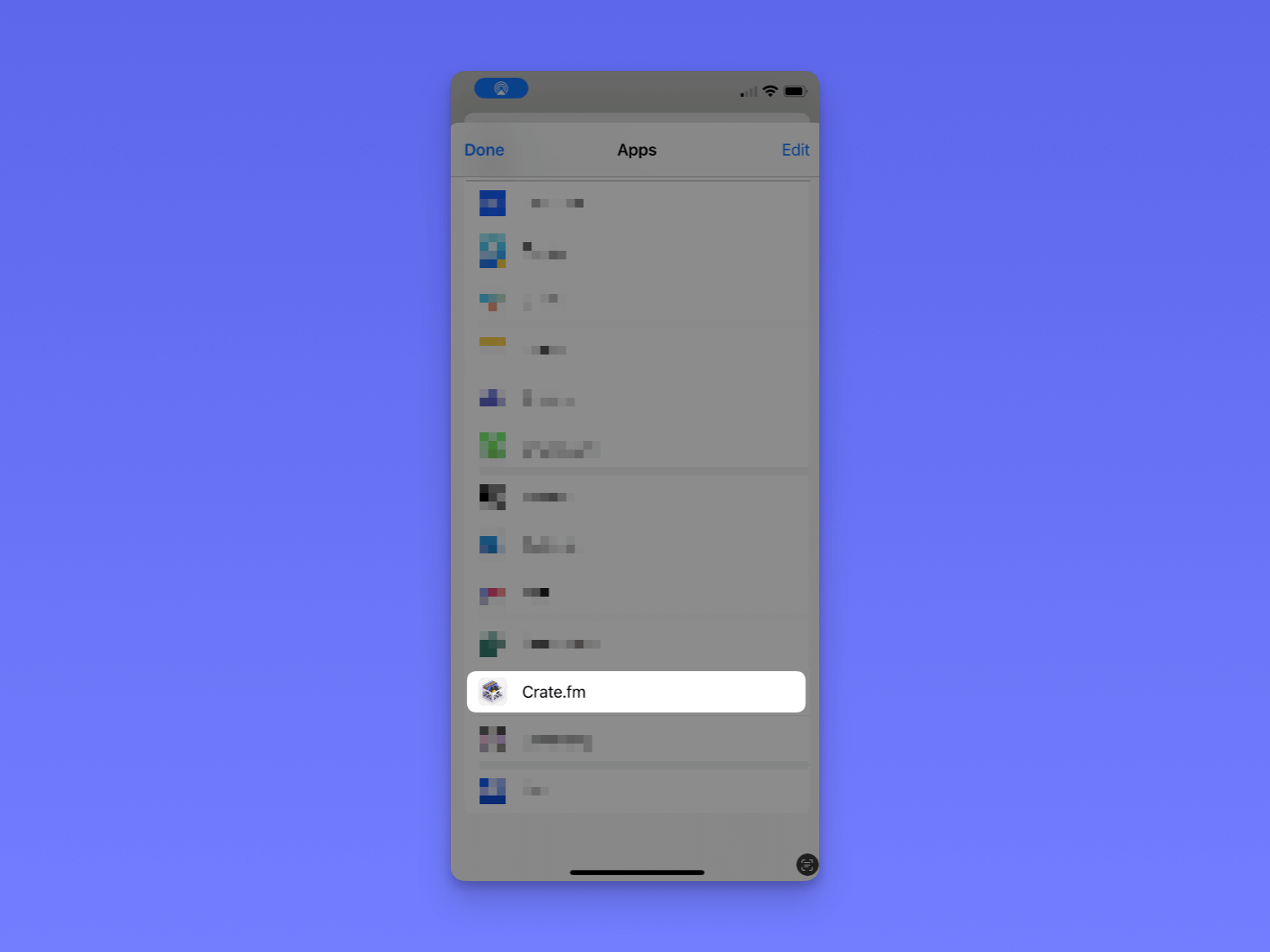
        <img className="block h-auto" src="https://mintcdn.com/cratetechnologiesinc/Gtmk_9nPJ4BAQ-86/images/imessage-3.png?fit=max&auto=format&n=Gtmk_9nPJ4BAQ-86&q=85&s=eaed1423be4b5d1449cd35611fbe5f4b" width="1468" height="1101" data-path="images/imessage-3.png" />
      </Step>

      <Step title="Step 5">
        Click edit in the top right corner of the screen, and click the "Add"
        button to the left of the Crate.fm logo.
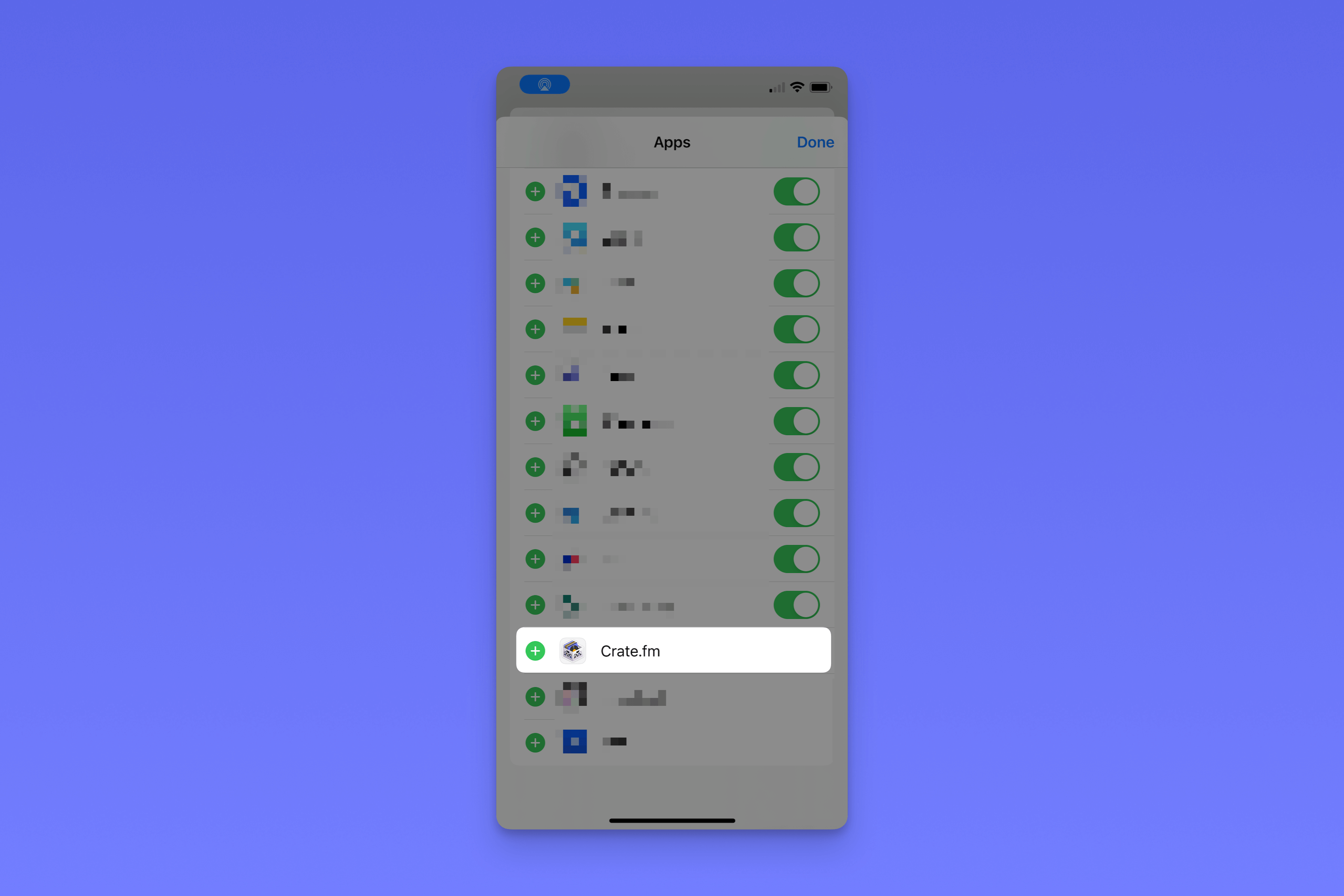
        <img className="block h-auto" src="https://mintcdn.com/cratetechnologiesinc/Gtmk_9nPJ4BAQ-86/images/imessage-2.png?fit=max&auto=format&n=Gtmk_9nPJ4BAQ-86&q=85&s=627db206503aed5817f4dac20a38a9b2" width="3393" height="2262" data-path="images/imessage-2.png" />
      </Step>

      <Step title="Step 6">
        Now, whenever you click the "Share" button in iMessage, you will see
        Crate.fm. Click the Crate.fm icon to import your track into the app.
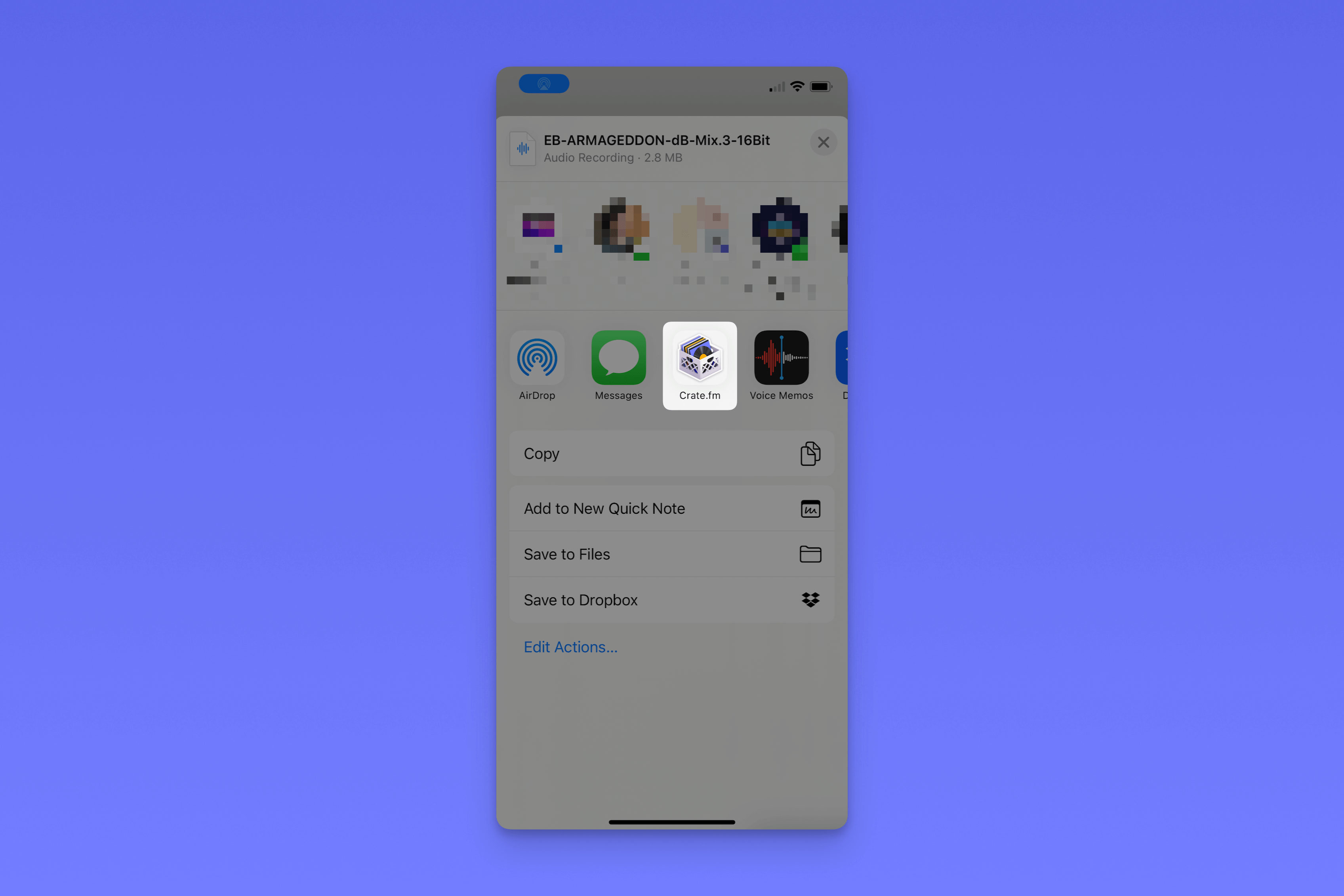
        <img className="block h-auto" src="https://mintcdn.com/cratetechnologiesinc/Gtmk_9nPJ4BAQ-86/images/imessage-1.png?fit=max&auto=format&n=Gtmk_9nPJ4BAQ-86&q=85&s=ddc6c100da70ad67be0c90fc78ebcc2c" width="3393" height="2262" data-path="images/imessage-1.png" />
      </Step>
    </Steps>
  </Accordion>

  <Accordion icon="apple" title="Upload from AirDrop">
    <Steps>
      <Step title="Step 1">
        When someone Airdrops you an audio file, a notification will appear at
        the top of the screen.
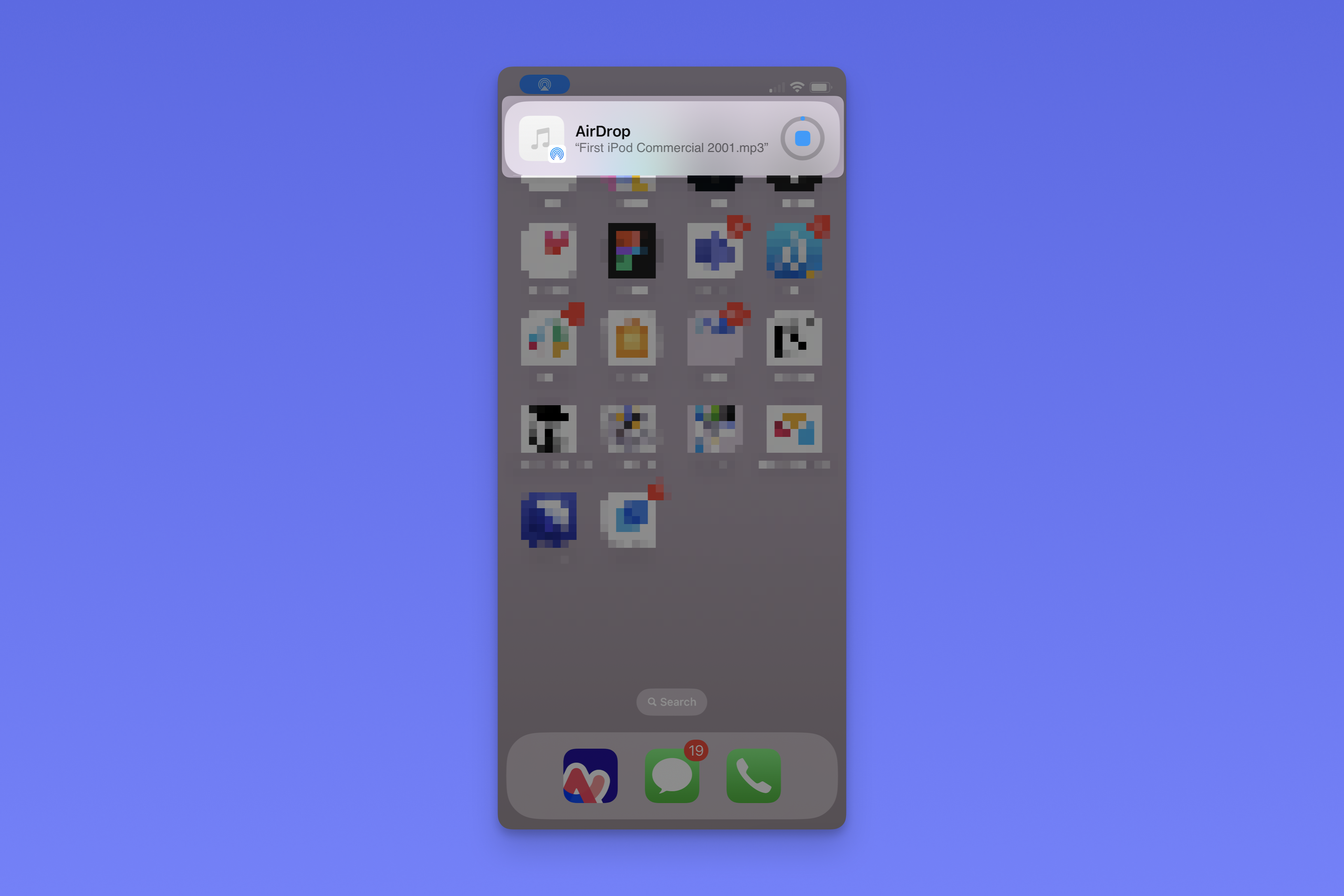
        <img className="block h-auto" src="https://mintcdn.com/cratetechnologiesinc/Gtmk_9nPJ4BAQ-86/images/airdrop-1.png?fit=max&auto=format&n=Gtmk_9nPJ4BAQ-86&q=85&s=b3cdec6956aafc22c4f0422770dbf4af" width="3393" height="2262" data-path="images/airdrop-1.png" />
      </Step>

      <Step title="Step 2">
        Your phone will open the audio file in your files app. From here, click
        the "Share" button in the bottom left corner of the screen.

        <img className="block h-auto" src="https://mintcdn.com/cratetechnologiesinc/Gtmk_9nPJ4BAQ-86/images/imessage-0.png?fit=max&auto=format&n=Gtmk_9nPJ4BAQ-86&q=85&s=42a13f93597ea5155a15132a028f6866" width="3384" height="2256" data-path="images/imessage-0.png" />
      </Step>

      <Step title="Step 3">
        In your list of available apps, scroll to the right to find "More" and
        click on it.

        <img className="block h-auto" src="https://mintcdn.com/cratetechnologiesinc/Gtmk_9nPJ4BAQ-86/images/imessage-4.png?fit=max&auto=format&n=Gtmk_9nPJ4BAQ-86&q=85&s=5b61ab909d2eed9a567307e92f8a02da" width="3387" height="2258" data-path="images/imessage-4.png" />
      </Step>

      <Step title="Step 4">
        Now, scroll to the bottom of the list of apps until you see Crate.fm.

        <img className="block h-auto" src="https://mintcdn.com/cratetechnologiesinc/Gtmk_9nPJ4BAQ-86/images/imessage-3.png?fit=max&auto=format&n=Gtmk_9nPJ4BAQ-86&q=85&s=eaed1423be4b5d1449cd35611fbe5f4b" width="1468" height="1101" data-path="images/imessage-3.png" />
      </Step>

      <Step title="Step 5">
        Click edit in the top right corner of the screen, and click the "Add"
        button to the left of the Crate.fm logo.

        <img className="block h-auto" src="https://mintcdn.com/cratetechnologiesinc/Gtmk_9nPJ4BAQ-86/images/imessage-2.png?fit=max&auto=format&n=Gtmk_9nPJ4BAQ-86&q=85&s=627db206503aed5817f4dac20a38a9b2" width="3393" height="2262" data-path="images/imessage-2.png" />
      </Step>

      <Step title="Step 6">
        Now, whenever you click the "Share" button in iMessage, you will see
        Crate.fm. Click the Crate.fm icon to import your track into the app.

        <img className="block h-auto" src="https://mintcdn.com/cratetechnologiesinc/Gtmk_9nPJ4BAQ-86/images/imessage-1.png?fit=max&auto=format&n=Gtmk_9nPJ4BAQ-86&q=85&s=ddc6c100da70ad67be0c90fc78ebcc2c" width="3393" height="2262" data-path="images/imessage-1.png" />
      </Step>
    </Steps>
  </Accordion>

  <Accordion icon="apple" title="Upload from iOS Files">
    <Steps>
      <Step title="Step 1">
        Locate the file you want to import in the iOS Files app on your phone.
      </Step>

      <Step title="Step 2">
        Click the "Share" button in the bottom left corner of the screen.

        <img className="block h-auto" src="https://mintcdn.com/cratetechnologiesinc/Gtmk_9nPJ4BAQ-86/images/imessage-0.png?fit=max&auto=format&n=Gtmk_9nPJ4BAQ-86&q=85&s=42a13f93597ea5155a15132a028f6866" width="3384" height="2256" data-path="images/imessage-0.png" />
      </Step>

      <Step title="Step 3">
        In your list of available apps, scroll to the right to find "More" and
        click on it.

        <img className="block h-auto" src="https://mintcdn.com/cratetechnologiesinc/Gtmk_9nPJ4BAQ-86/images/imessage-4.png?fit=max&auto=format&n=Gtmk_9nPJ4BAQ-86&q=85&s=5b61ab909d2eed9a567307e92f8a02da" width="3387" height="2258" data-path="images/imessage-4.png" />
      </Step>

      <Step title="Step 4">
        Now, scroll to the bottom of the list of apps until you see Crate.fm.

        <img className="block h-auto" src="https://mintcdn.com/cratetechnologiesinc/Gtmk_9nPJ4BAQ-86/images/imessage-3.png?fit=max&auto=format&n=Gtmk_9nPJ4BAQ-86&q=85&s=eaed1423be4b5d1449cd35611fbe5f4b" width="1468" height="1101" data-path="images/imessage-3.png" />
      </Step>

      <Step title="Step 5">
        Click edit in the top right corner of the screen, and click the "Add"
        button to the left of the Crate.fm logo.

        <img className="block h-auto" src="https://mintcdn.com/cratetechnologiesinc/Gtmk_9nPJ4BAQ-86/images/imessage-2.png?fit=max&auto=format&n=Gtmk_9nPJ4BAQ-86&q=85&s=627db206503aed5817f4dac20a38a9b2" width="3393" height="2262" data-path="images/imessage-2.png" />
      </Step>

      <Step title="Step 6">
        Now, whenever you click the "Share" button in iMessage, you will see
        Crate.fm. Click the Crate.fm icon to import your track into the app.

        <img className="block h-auto" src="https://mintcdn.com/cratetechnologiesinc/Gtmk_9nPJ4BAQ-86/images/imessage-1.png?fit=max&auto=format&n=Gtmk_9nPJ4BAQ-86&q=85&s=ddc6c100da70ad67be0c90fc78ebcc2c" width="3393" height="2262" data-path="images/imessage-1.png" />
      </Step>
    </Steps>
  </Accordion>

  <Accordion icon="apple" title="Upload from the Crate.fm iOS app">
    <Steps>
      <Step title="Step 1">
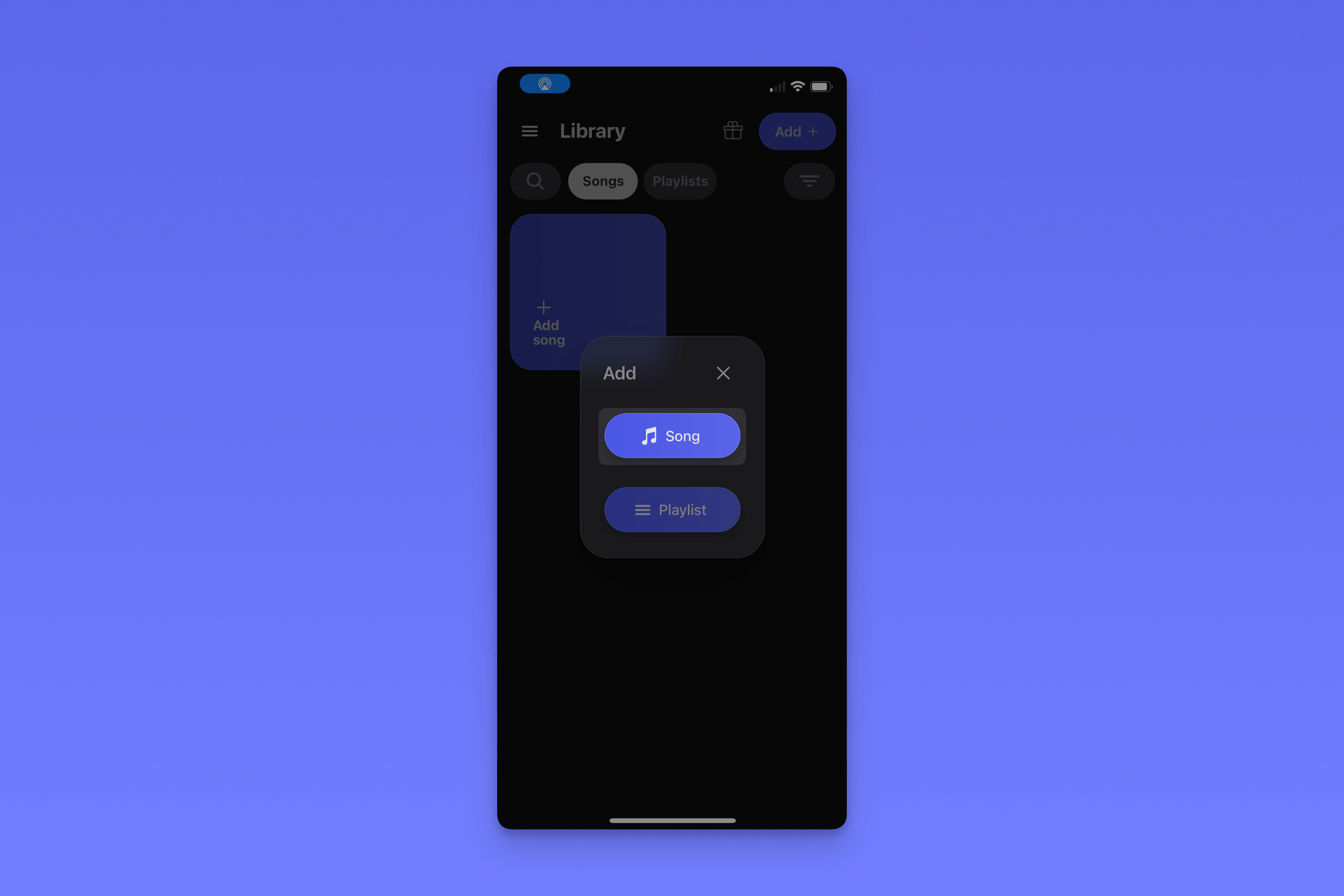
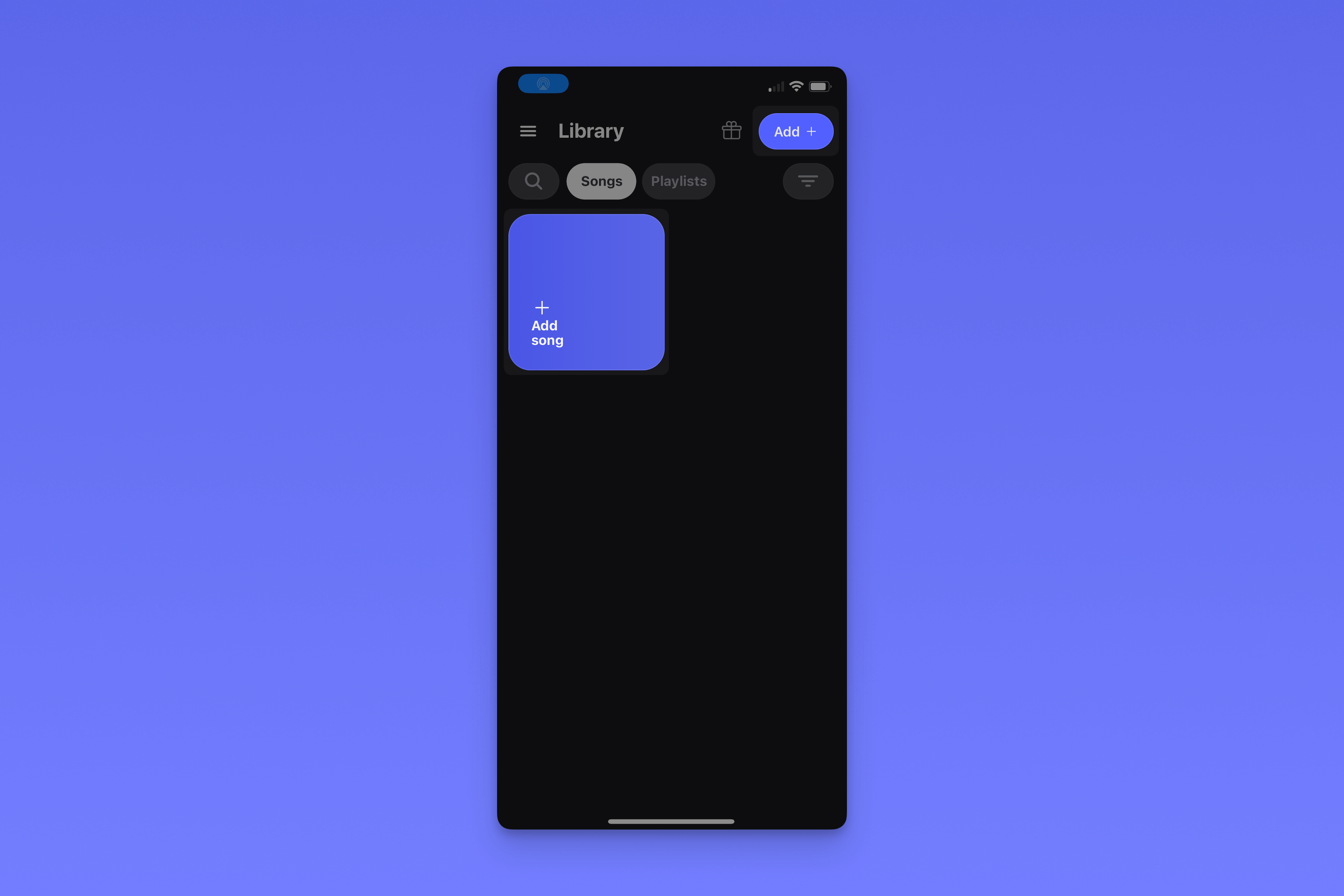
        Click the "Add" button in the top right corner of the screen, or, if
        this is the first song in your library, you can click "Add song," as
        shown in the screenshot below.
        <img className="block h-auto" src="https://mintcdn.com/cratetechnologiesinc/Gtmk_9nPJ4BAQ-86/images/upload-app-1.png?fit=max&auto=format&n=Gtmk_9nPJ4BAQ-86&q=85&s=0f65011480b523ad87b0f51e8cca3656" width="3396" height="2264" data-path="images/upload-app-1.png" />
      </Step>

      <Step title="Step 2">
        Next, click "Song."

        <img className="block h-auto" src="https://mintcdn.com/cratetechnologiesinc/Gtmk_9nPJ4BAQ-86/images/upload-app-2.png?fit=max&auto=format&n=Gtmk_9nPJ4BAQ-86&q=85&s=2f710bd95a72752745bceacc909fbd1b" width="3390" height="2260" data-path="images/upload-app-2.png" />
      </Step>

      <Step title="Step 3">
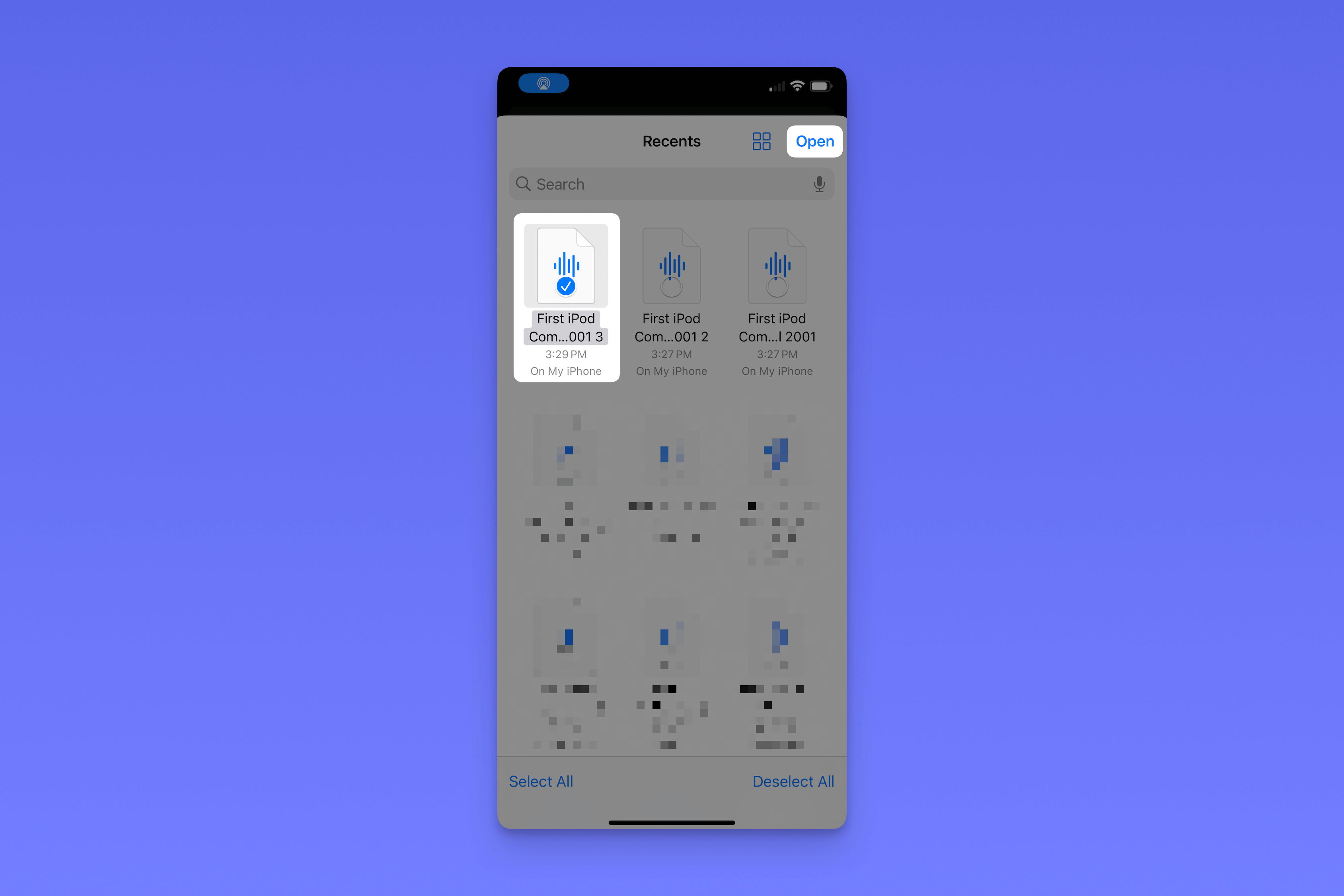
        The app will open the file selector. Click the file (or files) you would
        like to upload and select "Open" in the top right corner of the screen.
        <img className="block h-auto" src="https://mintcdn.com/cratetechnologiesinc/Gtmk_9nPJ4BAQ-86/images/upload-app-3.png?fit=max&auto=format&n=Gtmk_9nPJ4BAQ-86&q=85&s=b6212e9f5c96c459ef0d48514613a55e" width="3378" height="2252" data-path="images/upload-app-3.png" />
      </Step>

      <Step title="Step 4">
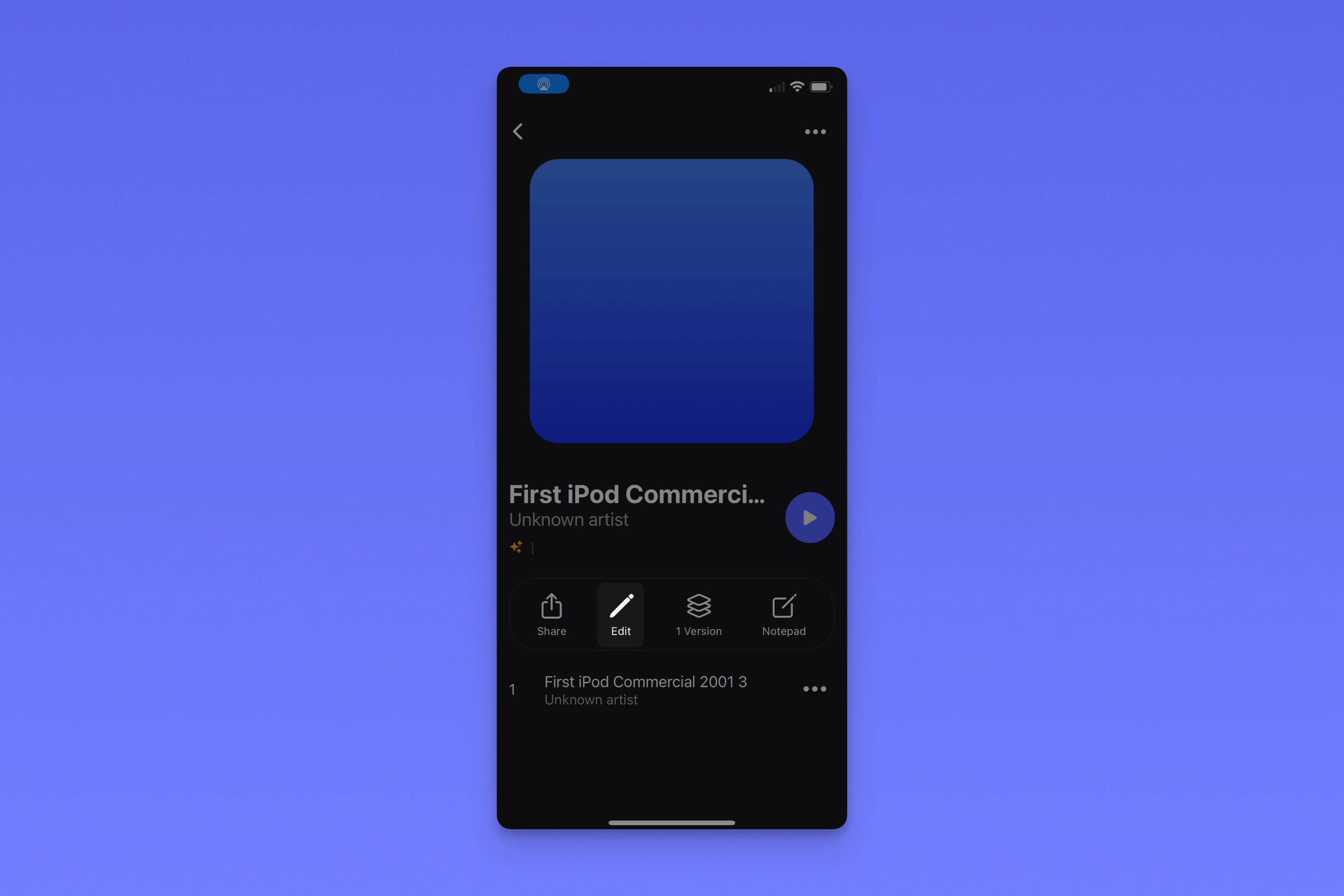
        Crate.fm will upload your song. While it's uploading, you can click
        "Edit" to give your song a title, artist, and album artwork.
        <img className="block h-auto" src="https://mintcdn.com/cratetechnologiesinc/Gtmk_9nPJ4BAQ-86/images/upload-app-4.png?fit=max&auto=format&n=Gtmk_9nPJ4BAQ-86&q=85&s=3ae26d1f6e4c3882380b5ae94ce2c9c8" width="3381" height="2254" data-path="images/upload-app-4.png" />
      </Step>
    </Steps>
  </Accordion>
</AccordionGroup>

### Uploading on web

<AccordionGroup>
  <Accordion icon="arrow-pointer" title="Drag and drop">
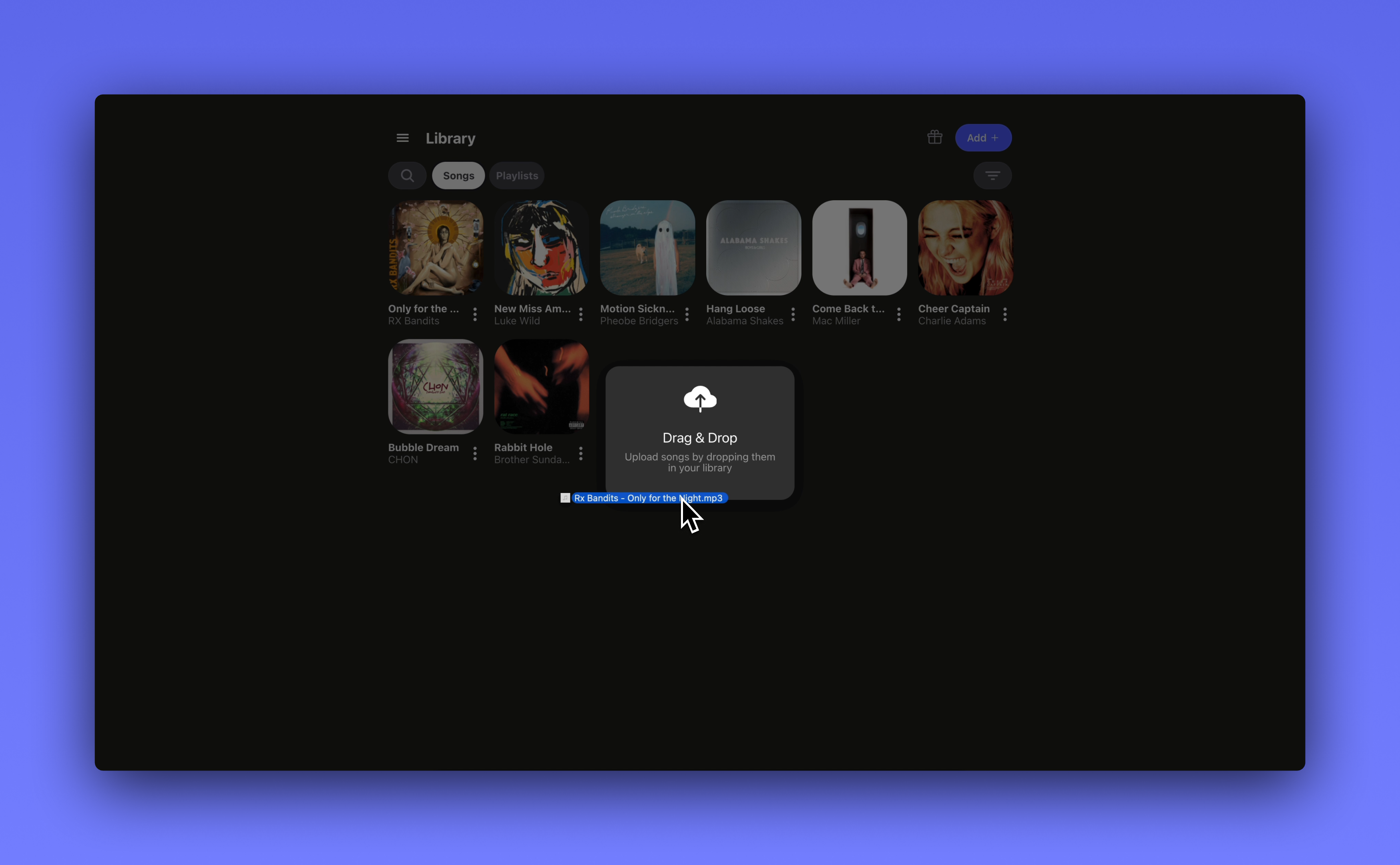
    Drag and drop any audio file (or multiple files) into your Crate.fm library to
    import it.
    <img className="block h-auto" src="https://mintcdn.com/cratetechnologiesinc/Gtmk_9nPJ4BAQ-86/images/dragndrop.png?fit=max&auto=format&n=Gtmk_9nPJ4BAQ-86&q=85&s=ec520812c91ab3faddd6e4139b68ce75" width="3497" height="2160" data-path="images/dragndrop.png" />
  </Accordion>

  <Accordion icon="file" title="File selector">
    <Steps>
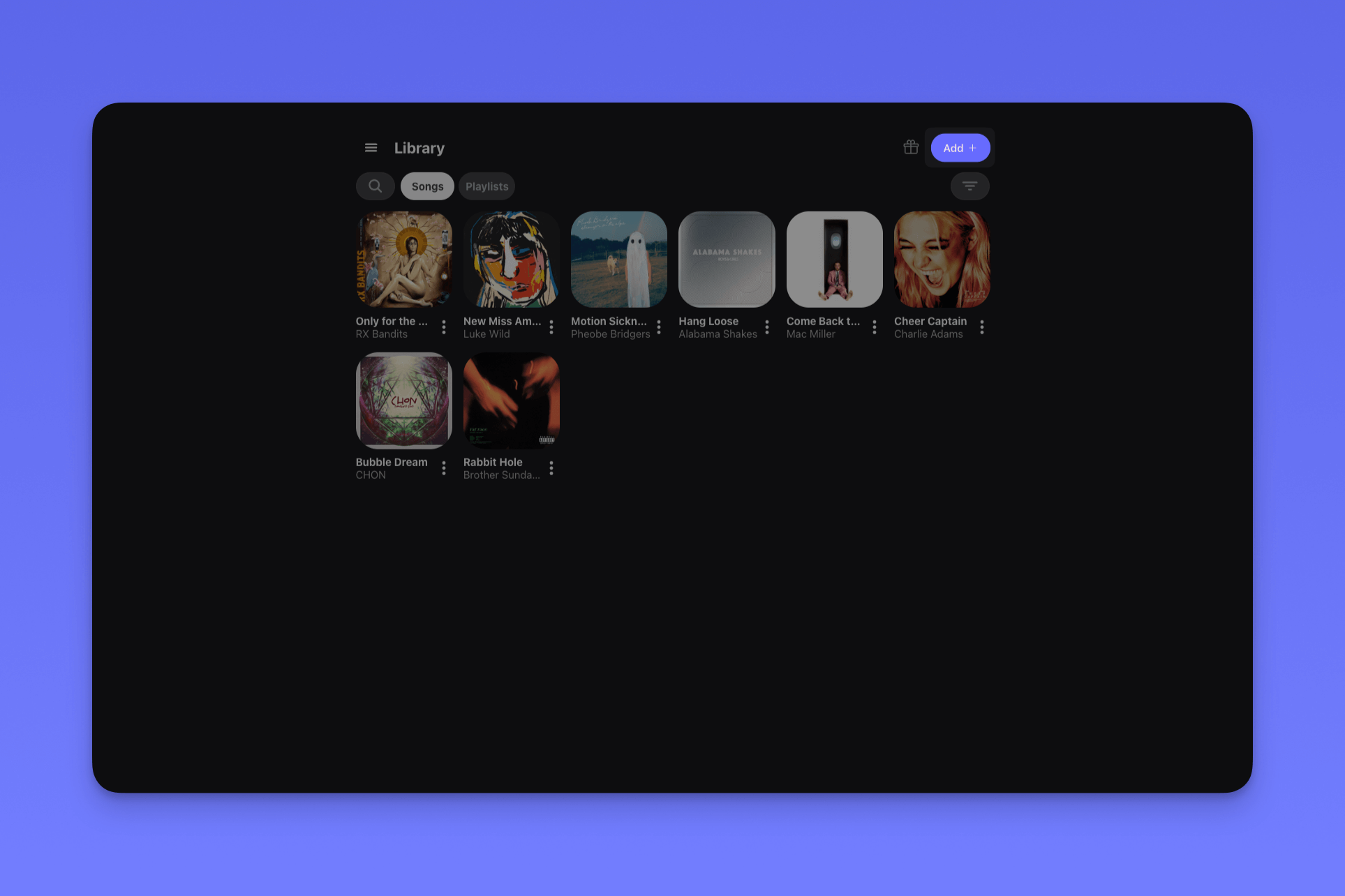
      <Step title="Step 1">
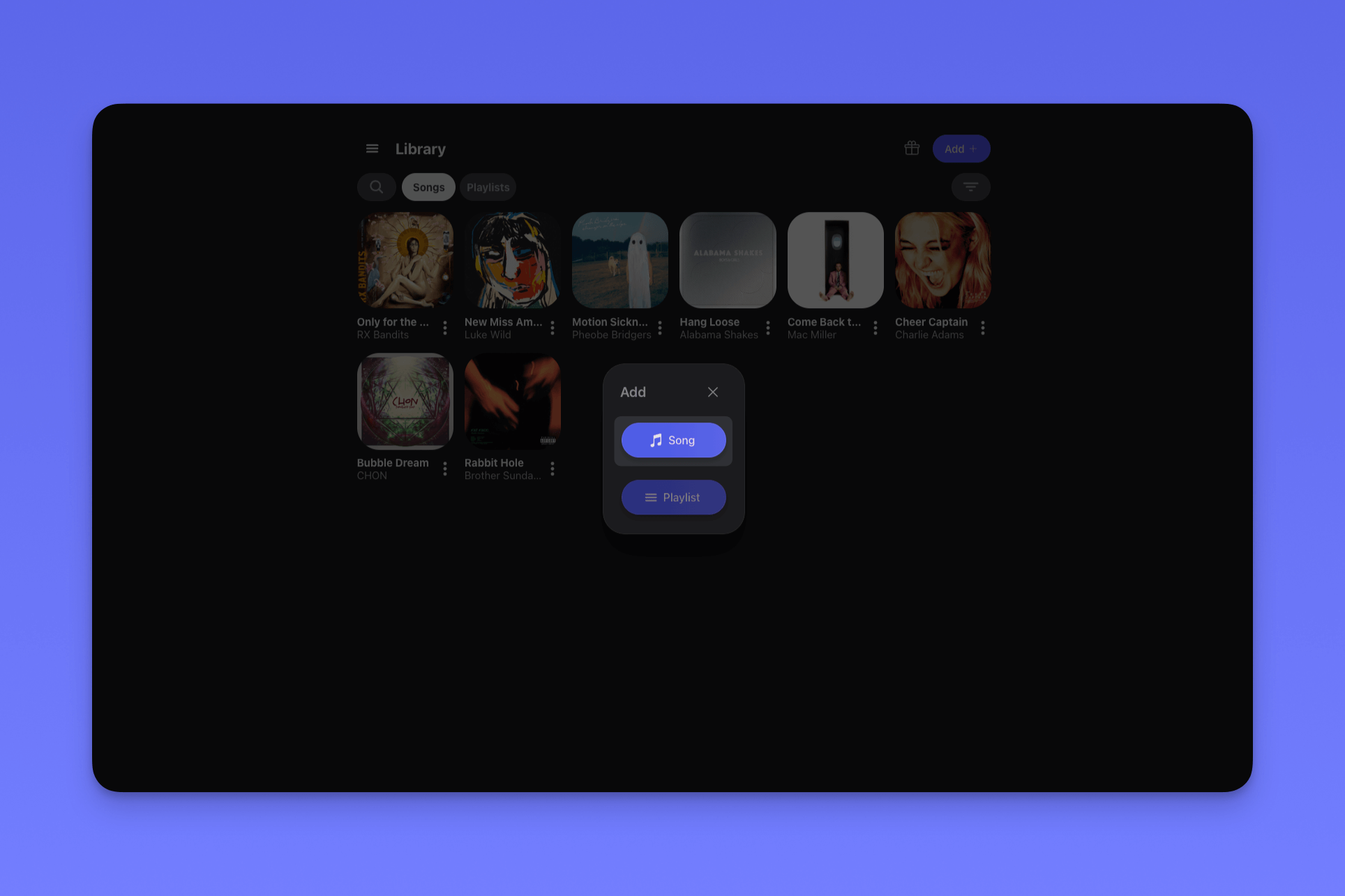
        Click the "Add" button in the top right corner of the screen.
        <img className="block h-auto" src="https://mintcdn.com/cratetechnologiesinc/Gtmk_9nPJ4BAQ-86/images/desktop-import-1.png?fit=max&auto=format&n=Gtmk_9nPJ4BAQ-86&q=85&s=6592198a03face182a3c48a2aae1280b" width="1927" height="1284" data-path="images/desktop-import-1.png" />
      </Step>

      <Step title="Step 2">
        Next, click "Song."

        <img className="block h-auto" src="https://mintcdn.com/cratetechnologiesinc/Gtmk_9nPJ4BAQ-86/images/desktop-import-2.png?fit=max&auto=format&n=Gtmk_9nPJ4BAQ-86&q=85&s=17fe08a6ccc4ab230e2e013d8712c00d" width="1928" height="1285" data-path="images/desktop-import-2.png" />
      </Step>

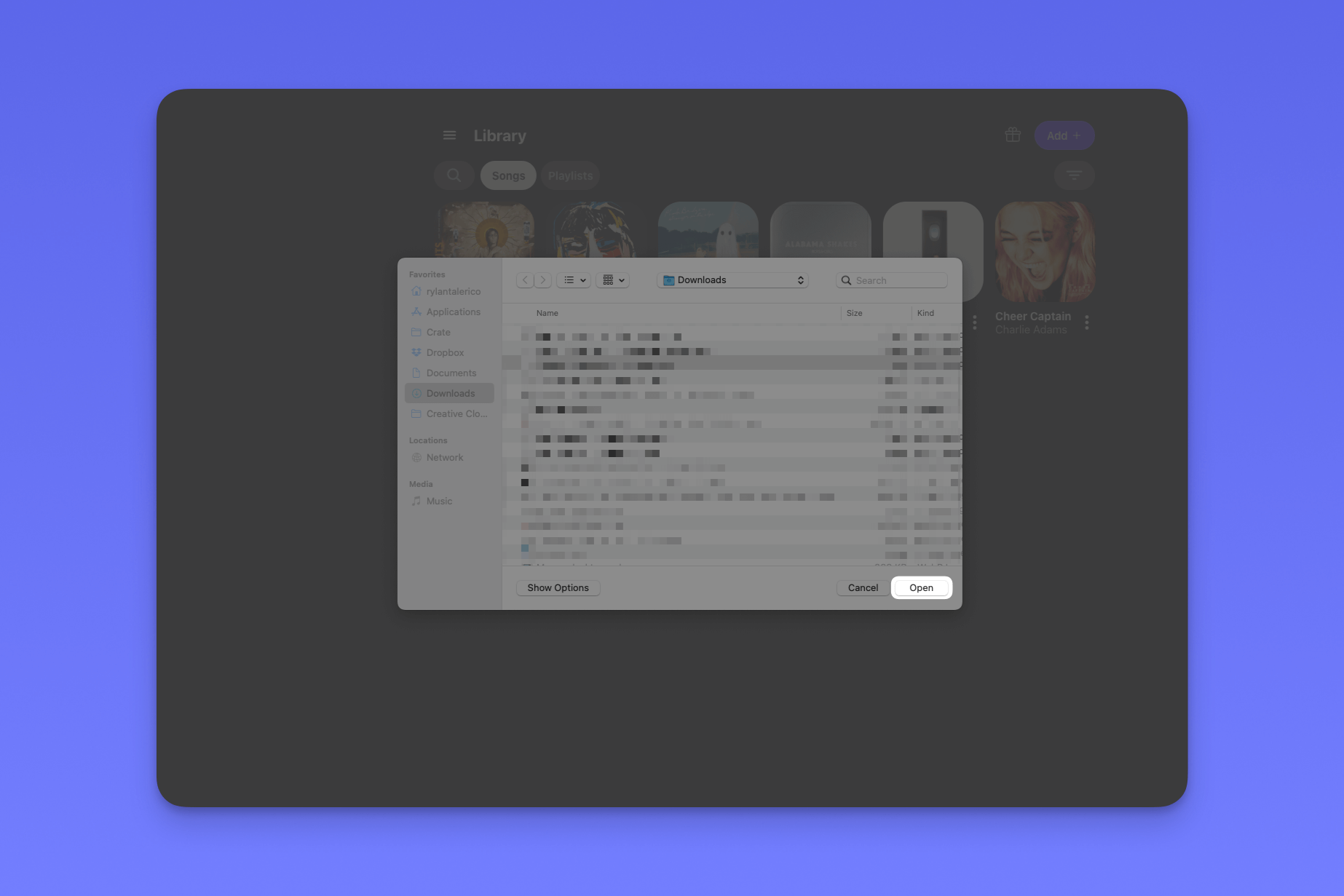
      <Step title="Step 3">
        Crate.fm will open the file selector. Click the file (or files) you would like to upload and select "Open" in the bottom right corner of the file selector.
        <img className="block h-auto" src="https://mintcdn.com/cratetechnologiesinc/Gtmk_9nPJ4BAQ-86/images/desktop-import-3.png?fit=max&auto=format&n=Gtmk_9nPJ4BAQ-86&q=85&s=514a3d4617903691a0c68aa2e93205f8" width="1846" height="1231" data-path="images/desktop-import-3.png" />
      </Step>

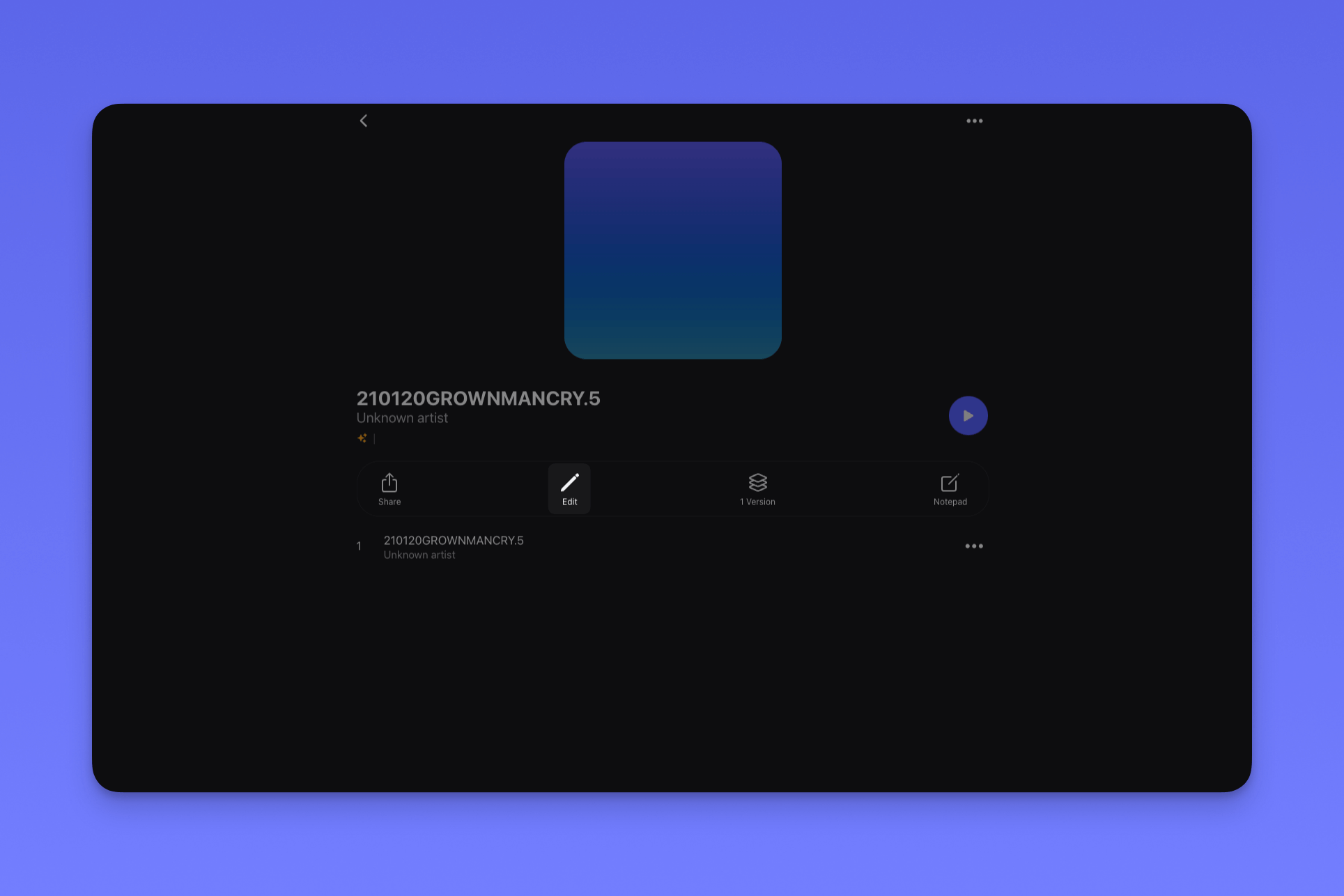
      <Step title="Step 4">
        That's it! Crate.fm will upload your track(s). While they're uploading, you can click "Edit" to give your song(s) a title, artist, and album artwork.
        <img className="block h-auto" src="https://mintcdn.com/cratetechnologiesinc/Gtmk_9nPJ4BAQ-86/images/desktop-import-4.png?fit=max&auto=format&n=Gtmk_9nPJ4BAQ-86&q=85&s=3b16e43dc1dba0fc5a5e6eb73b34dac7" width="1929" height="1286" data-path="images/desktop-import-4.png" />
      </Step>
    </Steps>
  </Accordion>
</AccordionGroup>

## Essentials

{" "}

<CardGroup cols={2}>
  <Card title="Share your tracks" icon="share-nodes" href="/essentials/sharing">
    Create beautiful sharing links for your tracks
  </Card>

  <Card title="Upgrade your account" icon="crown" href="/essentials/upgrading">
    Store unlimited songs in Crate.fm
  </Card>
</CardGroup>